Product photos on a white background
Turn a photo taken on a table or a floor into a clean marketplace image, and know in advance which shots will not work.
The short answer: upload the photo, choose white on the result page and download. That gives you the product on #FFFFFF at its original framing. For a marketplace main image, crop close and centre it on a white square so it fills about 85% of the frame. It works best on solid objects photographed against a plain surface.
Three real products, three different outcomes
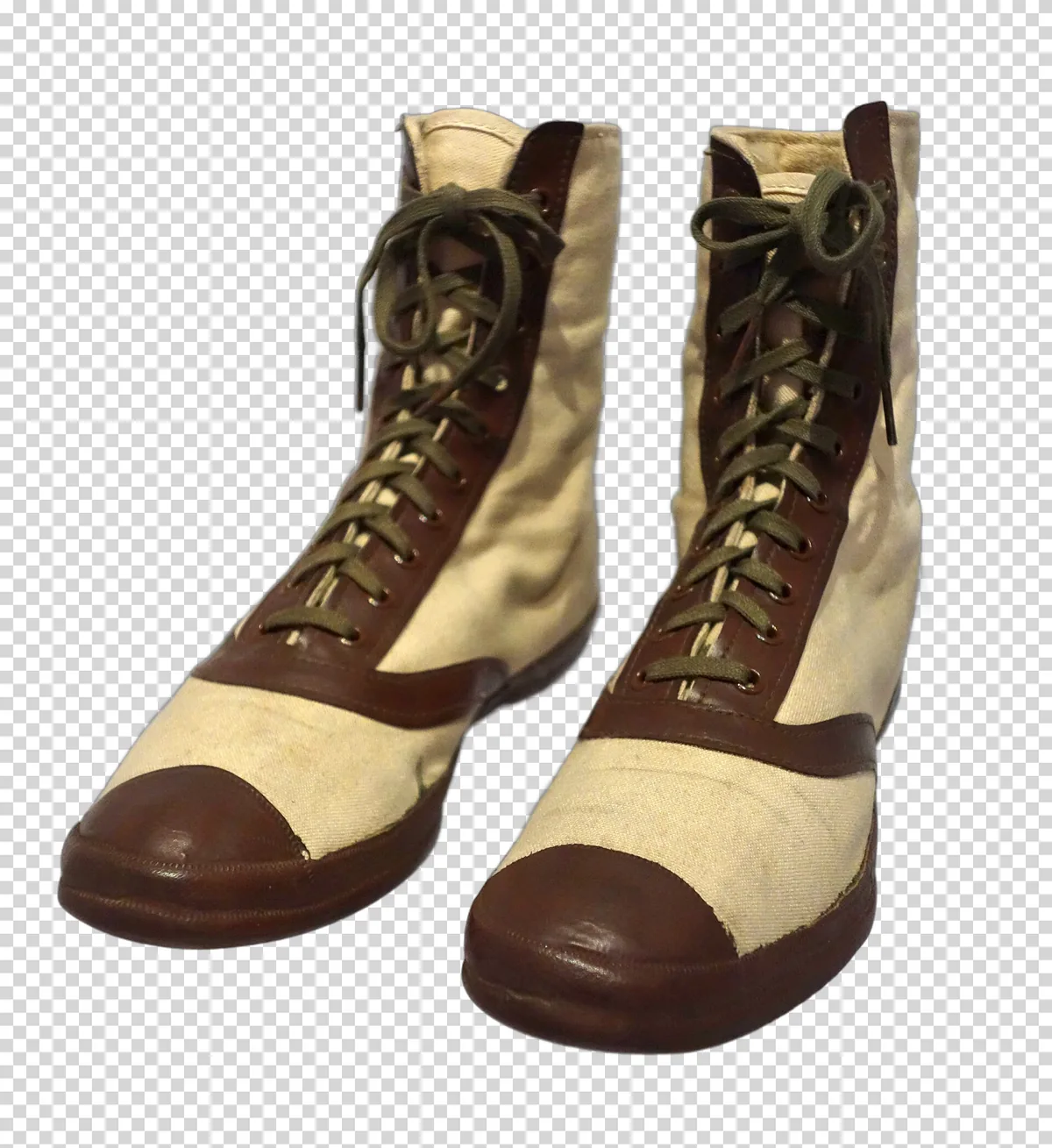
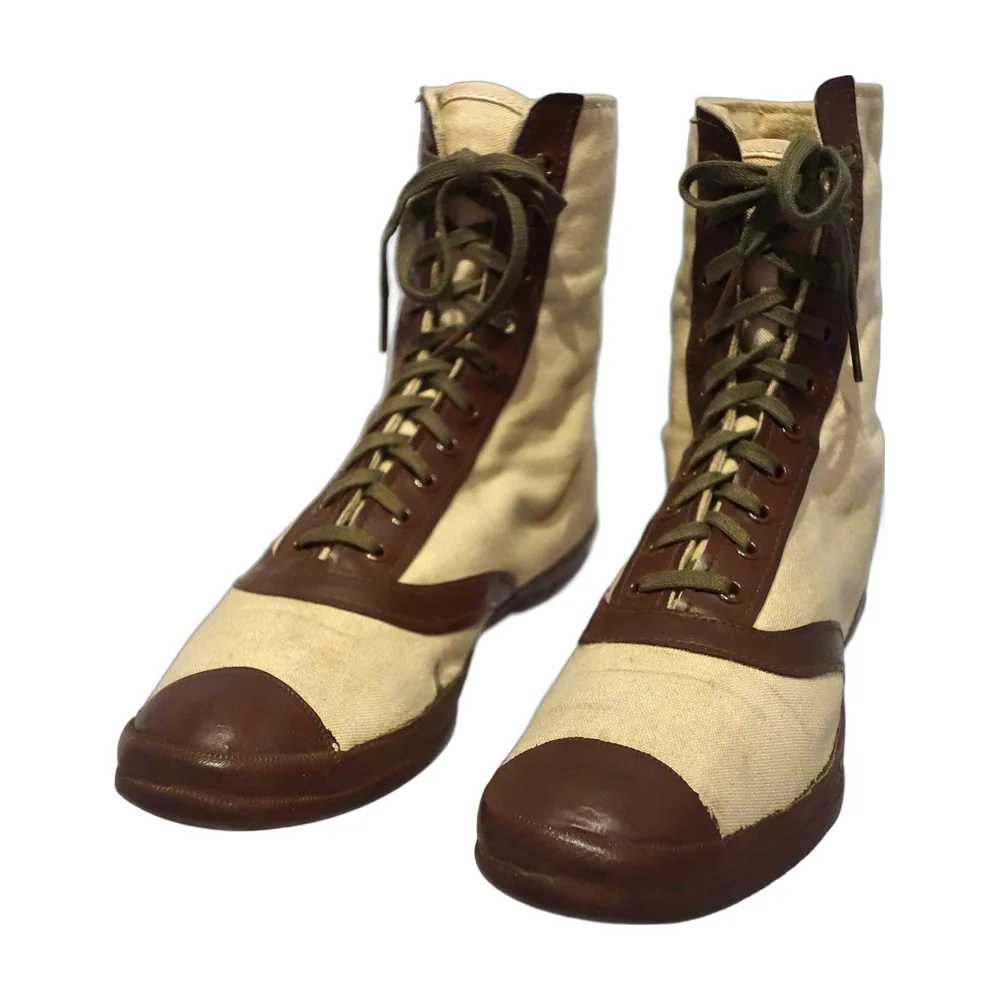
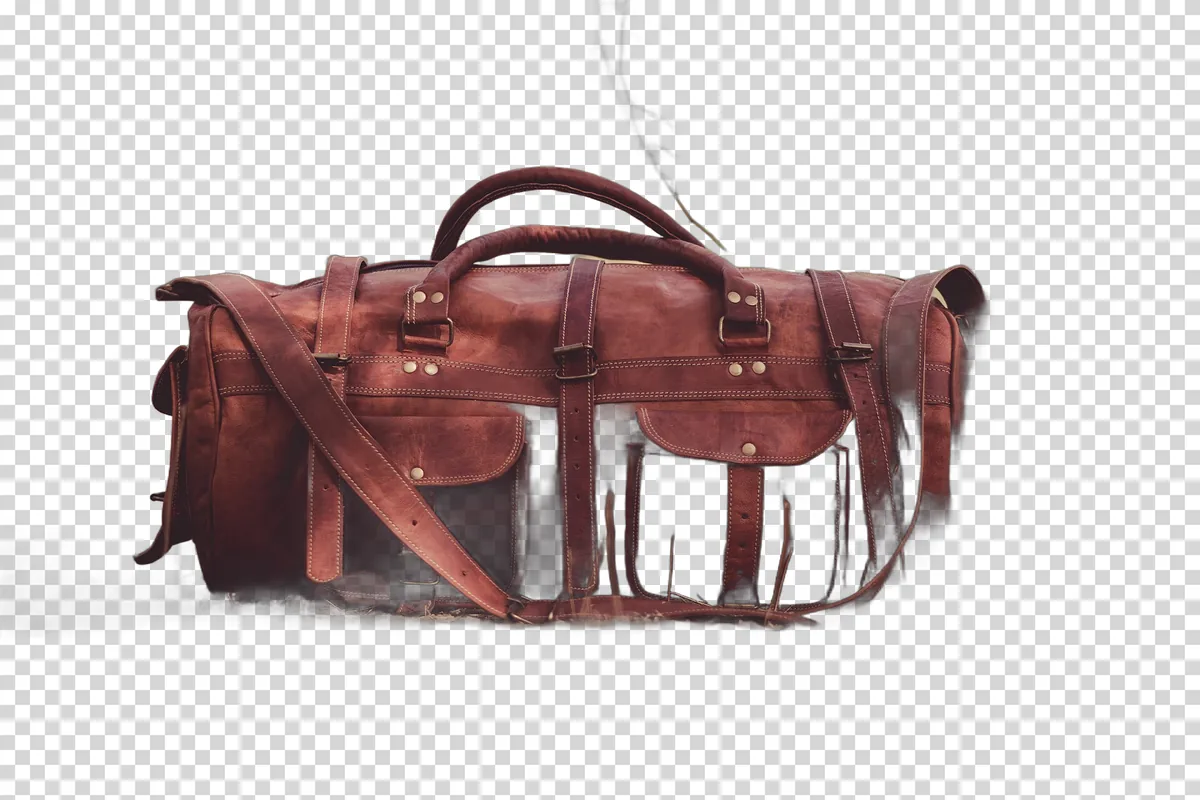
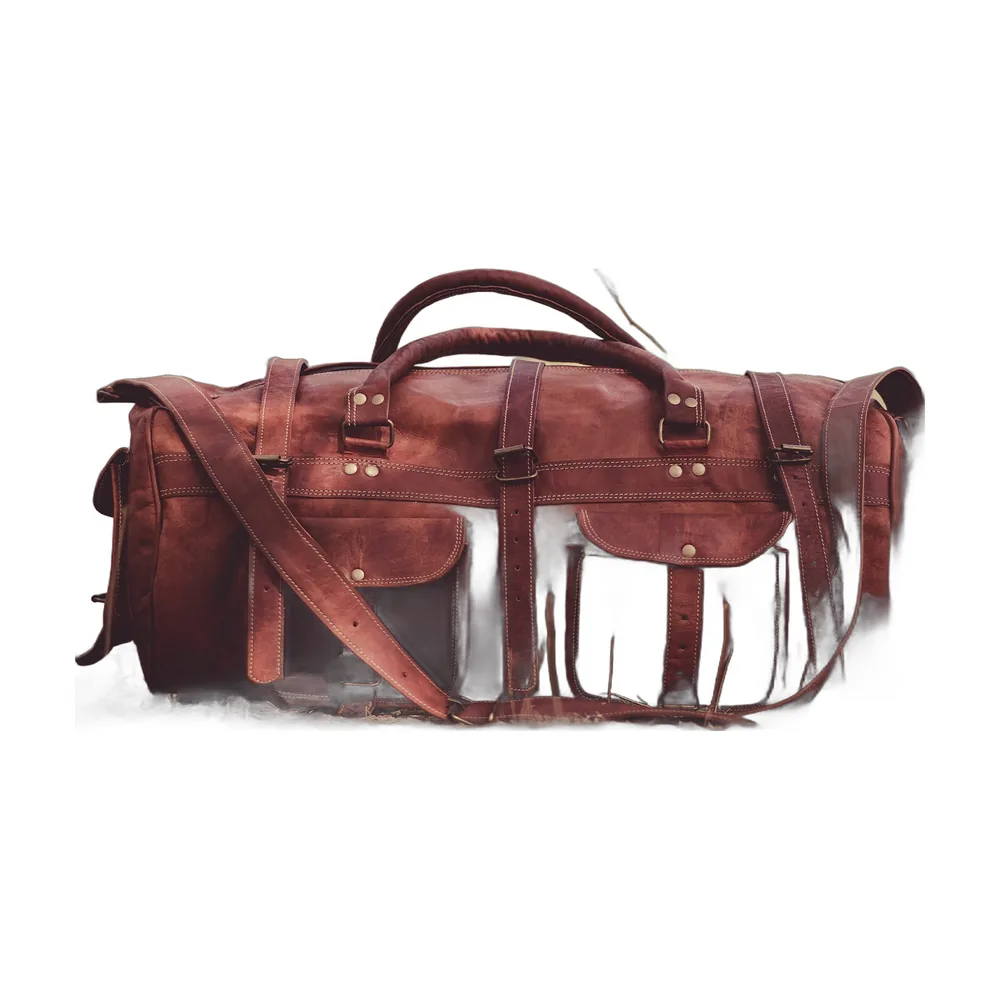
Each photo below was uploaded to this site unchanged. The middle column is the cutout as downloaded, the right column is the same cutout placed on white with the recipe further down.
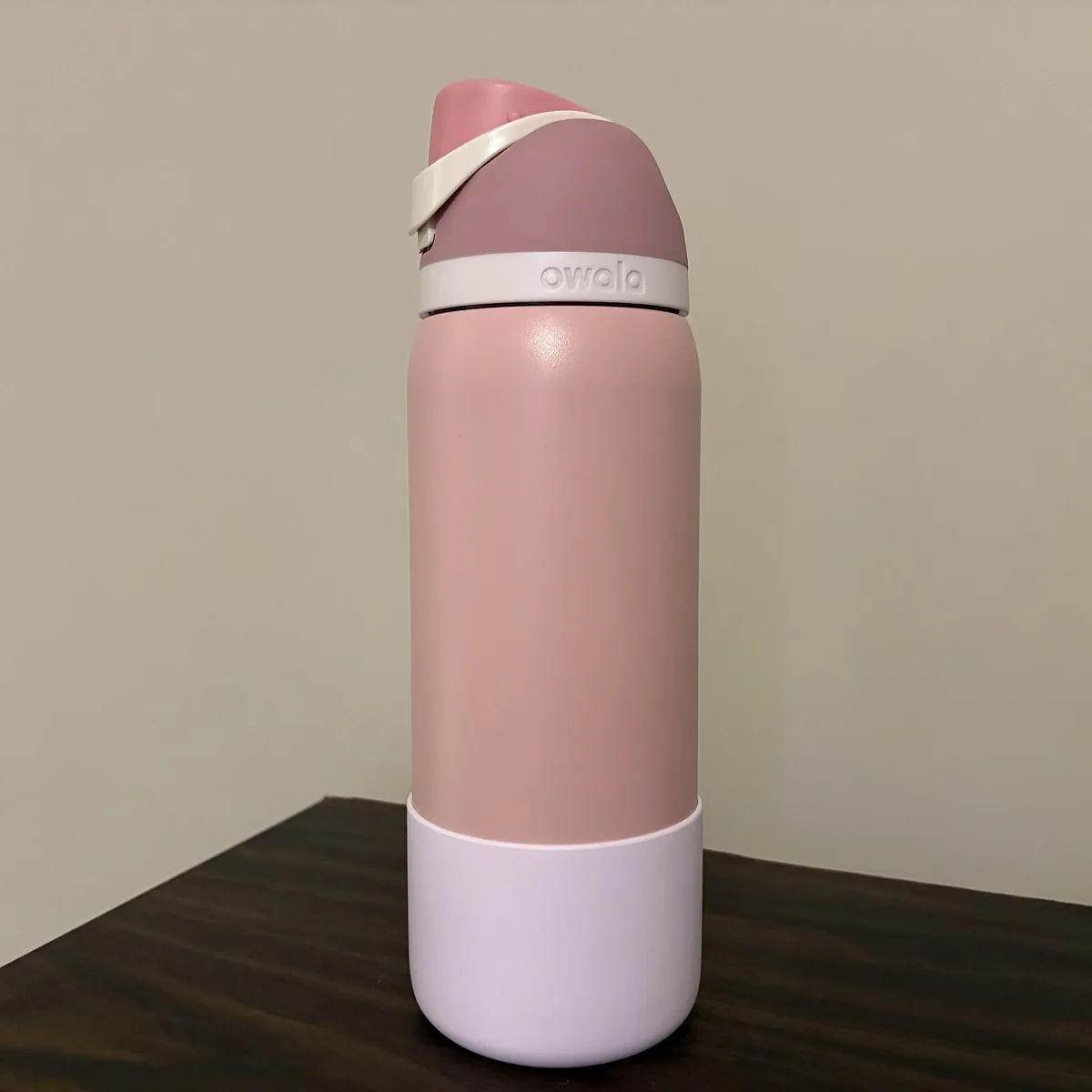 Original
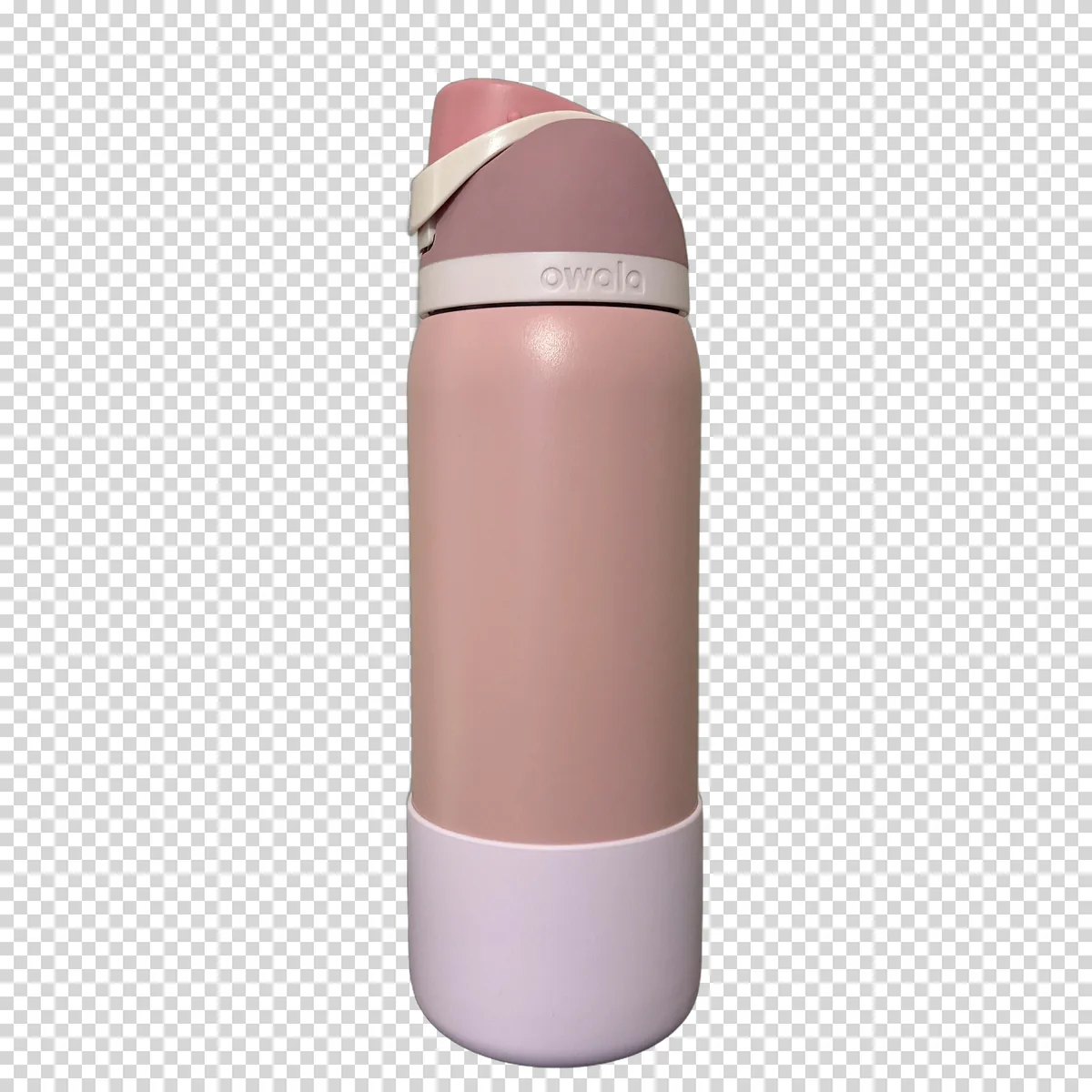 Cutout
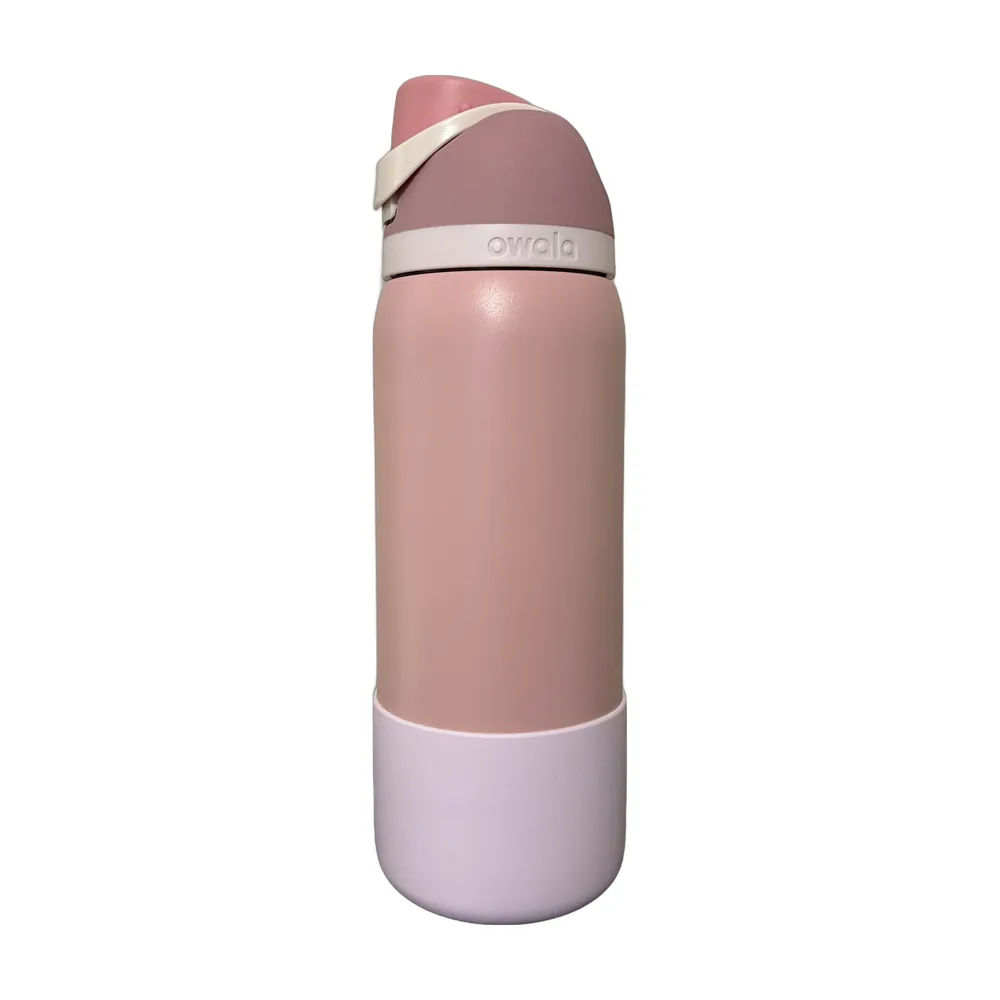 On white
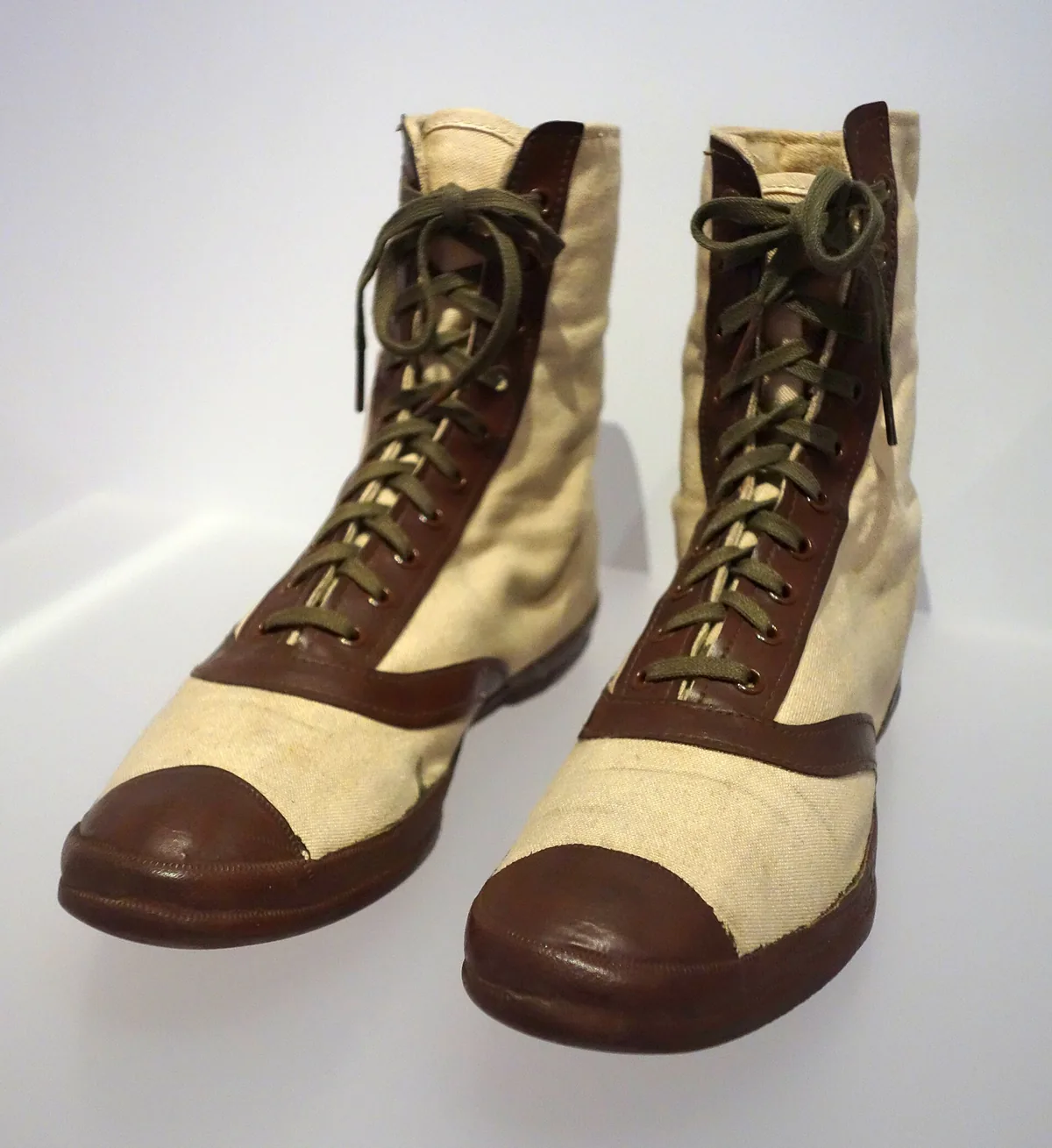 Original
 Cutout
 On white
 Original
 Cutout
 On white
The pattern is the useful part. The bottle and the sneakers were photographed the way products usually are: one object, plain background, even light. The bag was a lifestyle shot on textured ground with things touching it. The model had to guess where the bag ended, and it guessed differently in different places.
How to shoot a product that cuts out cleanly
-
STEP 01
Use a plain surface that contrasts with the product
A sheet of paper, a wall or a table top. Dark products on light paper, light products on a darker one. Avoid textured floors, grass and patterned cloth.
-
STEP 02
Keep the whole product in the frame, with nothing touching it
Cables, hands, leaves and props that overlap the edge confuse the model about where the product stops.
-
STEP 03
Use soft, even light
Daylight from a window works. Hard light makes dark shadows that the model may treat as part of the object.
-
STEP 04
Upload, choose white, check the edges
On the result page, switch between white and black backgrounds. Haze and see-through areas are easy to miss on white and obvious on black.
Framing recipe for a square main image
Marketplaces display main images as squares and expect the product to fill most of it. Amazon, for example, asks for the product to occupy about 85% of the image. The pictures in the right column above were made like this, in any editor that has crop and canvas size:
- Download the transparent PNG, not the white version.
- Crop to the product's outline. Most editors have a "trim transparent pixels" command for this.
- Scale it so the longer side is 1700 px.
- Place it in the middle of a 2000 by 2000 px canvas filled with white.
- Export as JPG at quality 90. The three examples weighed 179 KB, 349 KB and 476 KB.
"Longer side at 85%" does not mean the product covers 85% of the area. A tall bottle fills only about 22% of the square, wide sneakers about 66%. That is normal: the rule is about the longest dimension.
Note that photos are scaled to 2200 px on the long side before processing. For a 2000 px canvas that is enough when the product fills most of the original photo. If it is small in a wide shot, crop the original around it before uploading.
The missing shadow
Look at the bottle on white again: it seems to hover. Real product photos on white keep a faint contact shadow where the object touches the surface. The model removes it with the background, because a shadow on the floor is, after all, floor. Either accept the floating look, which many shops do, add a soft grey ellipse under the product in an editor, or check whether the marketplace prefers a natural shadow for your category.
Questions people actually ask
- Is the white on the result page pure white?
- Yes. Choosing white on the result page fills the background with #FFFFFF, the value marketplaces mean by pure white. The composite is made in your browser from the transparent PNG, so nothing is uploaded a second time.
- Does the tool make the product fill 85% of the frame?
- No. You get your photo back at its own framing, with the background removed. Making the product fill most of a square canvas is one more step in any editor: crop close to the product, then place it on a larger white square. The recipe on this page gives exact numbers.
- Why does my product look like it is floating?
- Because the model removes the shadow under the product along with the floor. Photos on pure white usually keep a soft contact shadow, and without it the object looks pasted in. If that bothers you, add a faint grey ellipse under the product in an editor, or shoot on white paper so the shadow is already there and only the room needs removing.
- Which marketplaces require a white background?
- Amazon requires pure white for the main image of most categories, and several others, including Google Shopping and eBay, recommend or require a plain background. The rules differ by marketplace, category and country and they change, so check the current image guidelines of the store you are listing on before you prepare a whole catalogue.
Written and maintained by Denis. Last updated: November 2, 2026